How to fix Apple TV reboot loop / restart loop (ATV2)
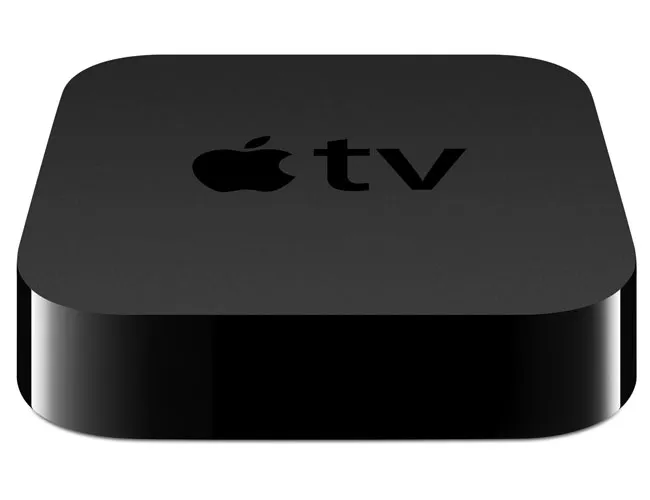
If your AppleTV has entered a reboot loop (light turns off and on constantly or it appears to be restarting over and over and nothing appears on the screen) then you may need to manually fix it using the following steps.
Notes:
- You need to know the IP address of your AppleTV (google how to do that if you never wrote down the IP before. You can sometimes find it by checking the DHCP table in your router).
- This guide assumes you had NitoTV and XBMC installed
- You will need to know how to use SSH (Mac / Linux) or download Putty (PC)
First up Make sure you have the apple updates blocked:
-
Connect to your AppleTV using SSH (use terminal on Mac/Linux or Putty on Windows)
-
Mac: type the following into Terminal (Change ipaddress to your Apple TV’s IP address first):
ssh root@ipaddress -
PC: Connect Putty to your Apple TV IP address, type ‘root’ as the username
-
-
Password is ‘alpine’
-
Once you are logged in run the following commands (paste or type them one at a time and hit enter)
cp /etc/hosts /etc/hosts.bak echo "127.0.0.1 appldnld.apple.com" >> /etc/hosts echo "127.0.0.1 mesu.apple.com" >> /etc/hosts echo "127.0.0.1 appldnld.apple.com.edgesuite.net" >> /etc/hosts -
That will block the AppleTV from trying to update itself from Apple (which breaks your Jailbreak) – the cause of many ‘my Apple TV keeps crashing, My Apple TV wont work, My Apple TV keeps restarting – type issues.
Now to fix the constant restart issue:
-
Type / paste in the following commands one at a time and then hit enter
-
apt-get remove beigelist -
You may be prompted to confirm you want to remove the files. Hit enter.
-
You should see something similar to this show up on the screen and the packages will be uninstalled:
Apple-TV:~ root# apt-get remove beigelist Reading package lists... Done Building dependency tree Reading state information... Done The following packages were automatically installed and are no longer required: org.tomcool.mloader com.nito.tssagent com.firecore.freemem-watcher org.tomcool.atvsettingsloader Use 'apt-get autoremove' to remove them. The following packages will be REMOVED: beigelist com.nito.nitotv org.xbmc.xbmc-atv2 0 upgraded, 0 newly installed, 3 to remove and 21 not upgraded. After this operation, 2576kB disk space will be freed. Do you want to continue [Y/n]? y (Reading database ... 5040 files and directories currently installed.) Removing com.nito.nitotv ... Removing org.xbmc.xbmc-atv2 ... Removing beigelist ... -
Now you can reinstall them by typing/pasting the following command and hitting enter:
-
apt-get install beigelist com.nito.nitotv org.xbmc.xbmc-atv2 -
Done – your ATV2 should now be fixed.
If that does not work:
-
apt-get updateapt-get -f installapt-get upgrade -
Remove any broken apps (remotehd-atv2 is sometimes troublesome). If you have troubles killing this one you can google that separately “unable to remove remotehd-atv2) there are various guides around stating how to remove it.
-
Restart
-
If that does not work then remove NitoTV
-
apt-get remove com.nito.nitotv -
it should now work but without NitoTV (which appears to be completely screwed in the latest version)